How to Fix EAN Barcodes in Excel: Leading Zeros and Scientific Notation
Excel strips leading zeros and turns EANs into scientific notation. How to open product files safely, what is recoverable, and a one-formula check-digit test.
You export a price list, open it to check something, save, and every barcode in the file now reads 8,80609E+12 — or the UPCs have quietly lost their leading zero. Nothing announced the damage. Excel treated your identifier column as numbers, and by the time the file reaches your webshop or feed tool, the codes no longer scan, validate or match.
This is the single most common way product identifiers get destroyed, and it is entirely preventable. This guide covers why spreadsheets corrupt barcodes, how to open and save product files without damage, what is and is not recoverable after the fact, and a formula that validates every EAN in a sheet in one pass. For what these codes actually are, see our guide to product identifiers.
Why Excel corrupts barcode numbers
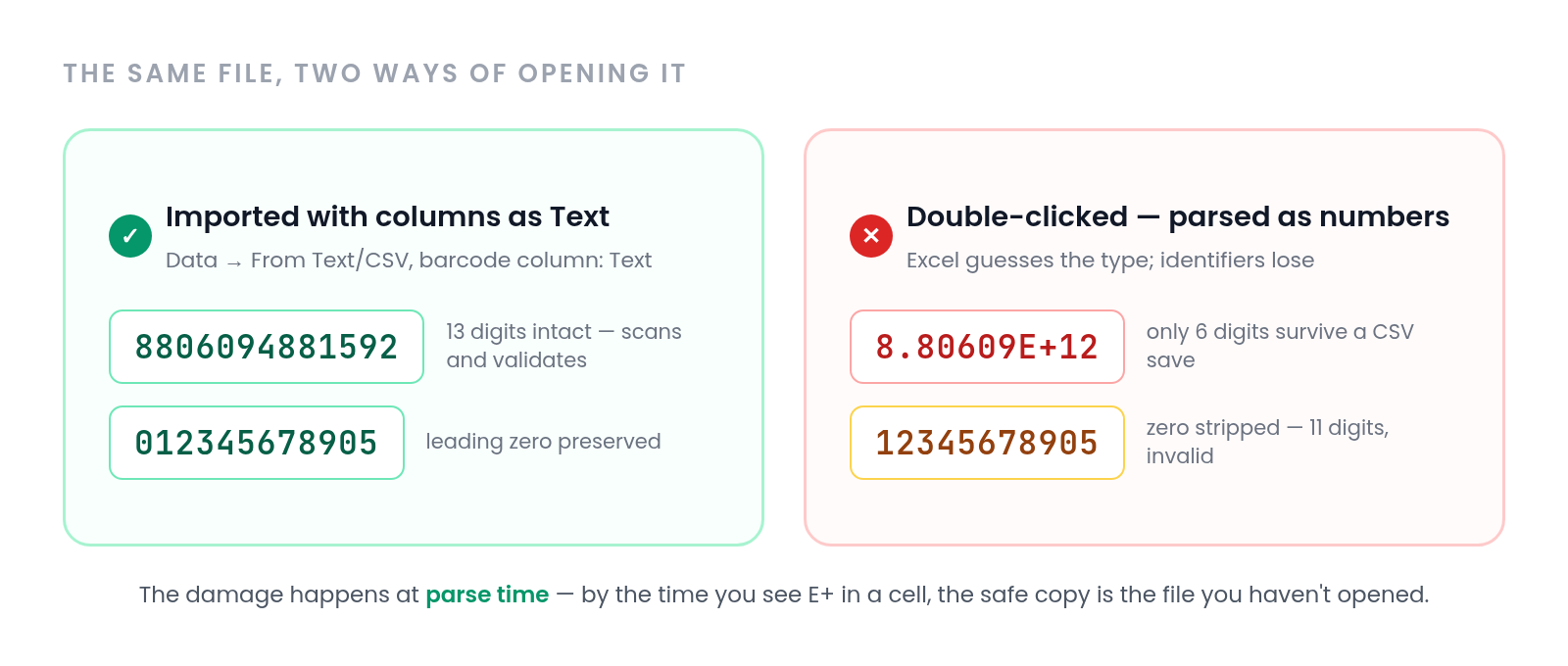
Excel guesses a type for every cell, and a column of 13-digit strings looks like numbers. Three things follow. Long numbers are displayed — and saved to CSV — in scientific notation: 8806094881592 becomes 8.80609E+12, which keeps only six meaningful digits. Numeric values cannot start with zero, so the moment a 12-digit UPC like 012345678905 is parsed as a number it becomes 11 digits and stops being valid. And a code is not a quantity: nothing about a barcode should ever be summed, rounded or auto-formatted, which is exactly what numeric columns invite.
The corruption happens at parse time — the moment the file opens. By the time you see E+ in a cell, the safe copy is the file you have not opened yet.
How to open a product file without destroying it
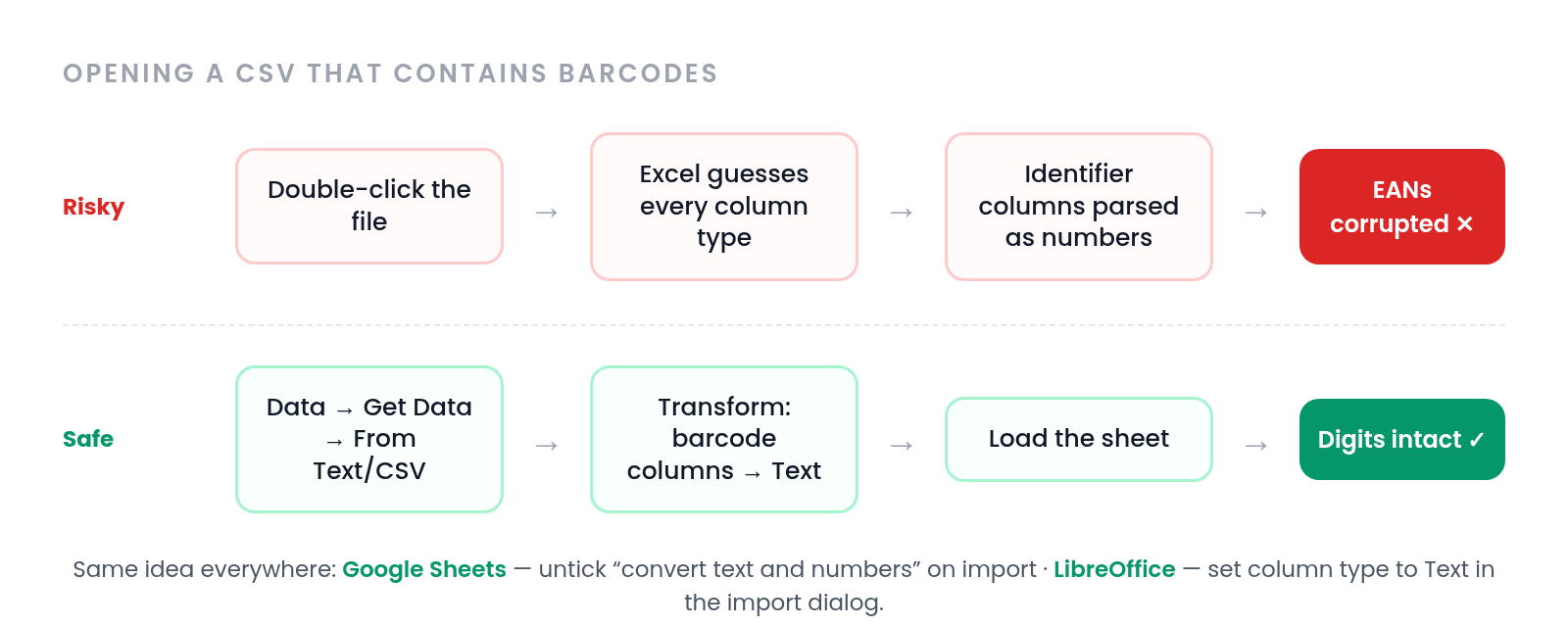
The rule is simple: never let a spreadsheet auto-open a CSV that contains identifiers. Import it instead, and declare the barcode columns as text.
- Excel — Data → Get Data → From Text/CSV, then Transform, and set the EAN column type to Text before loading. Double-clicking the file skips all of this and parses every column as numbers.
- Google Sheets — File → Import, and untick "Convert text, numbers and dates" so values arrive exactly as written.
- LibreOffice Calc — the import dialog appears automatically; select the barcode columns and set the column type to Text.
When building a sheet from scratch, format identifier columns as Text before pasting data into them — formatting after the paste does not restore digits that were already lost. And when exporting for a supplier or a tool, keep the column as text in the output too.
What is recoverable — and what is gone
Stripped leading zeros are recoverable. If the remaining digits are intact, pad the code back to its full length — =TEXT(A2,"0000000000000") rebuilds a 13-digit value — and then validate it, because padding fixes the length, not the correctness.
Scientific notation is the dangerous one. Inside a live spreadsheet the underlying value is often still complete, and formatting the column as a number with no decimals brings the digits back. But if the file was saved as CSV while displaying 8.80609E+12, the file itself now contains that six-digit approximation — the code is gone, and no formula will recover it. The only fix is re-importing from the original source, which is why the export you received is worth keeping unopened.
Validate every EAN in one pass
The 13th digit of an EAN-13 is a check digit computed from the first twelve, so a single formula can test an entire column. Paste this next to your first code (in A2) and fill down:
=IF(MOD(10-MOD(SUMPRODUCT(--MID(A2,{1;2;3;4;5;6;7;8;9;10;11;12},1),{1;3;1;3;1;3;1;3;1;3;1;3}),10),10)=--RIGHT(A2,1),"valid","check")
Every row marked "check" is a typo, a truncated code, or a supplier-internal number that was never a barcode. Codes that pass can still belong to the wrong product, so for anything important, confirm the registered brand behind the code with GS1's verification service.
Run this validation on every inbound supplier file, before the data merges into your catalog. It is one fill-down, and it catches damage while the source file is still available for a clean re-import.
Prevention: keep identifiers out of harm's way
- Make identifier columns Text in every template you send suppliers, and say so in the header row.
- Keep one untouched master copy of every inbound file; work on a duplicate.
- Prefer .xlsx over .csv when passing files between teams — it preserves column formatting, while a CSV is re-parsed from scratch on every open.
- If a file only needs viewing, do not open it in a spreadsheet at all — a text editor shows a CSV without touching it.
- Validate check digits at import time in whatever system receives the data, so corruption is caught at the door.
Takeaway
Excel corrupts barcodes because it treats identity as quantity. Open product files through the import dialog with barcode columns declared as text, keep an untouched master copy, pad recovered zeros back to full length, and validate everything with the check-digit formula. If a code was saved to CSV in scientific notation, stop looking for a formula — recover it from the source, or look the EAN up again and verify it before it re-enters your catalog.
Frequently asked questions
Why does Excel remove leading zeros from barcodes?
Because it parses the column as numeric, and numbers cannot start with zero — a 12-digit UPC beginning with 0 silently becomes 11 digits. Formatting the column as Text before data enters it, or importing with the column declared as Text, prevents it.
Can I recover EANs saved in scientific notation?
If the value still lives in a spreadsheet, often yes — format the column as a number without decimals and the full digits may reappear. If the file was saved as CSV while displaying E+ notation, the digits were written to disk in approximated form and are unrecoverable; re-import from the original source or look the codes up fresh.
How do I open a CSV without corrupting barcodes?
Do not double-click it. In Excel use Data → From Text/CSV and set identifier columns to Text; in Google Sheets untick automatic conversion on import; in LibreOffice set the column type in the import dialog. The damage happens at parse time, so the import step is the only place to prevent it.
Ready to clean up your product list?
Upload a raw CSV or Excel file and get back verified names, EANs, categories, descriptions and images. First 25 products are free.
Get started free →