Missing GTIN in Google Merchant Center: How to Fix It Step by Step
Merchant Center flagging "missing value: GTIN"? How to fix it — find the real GTINs, use brand + MPN, and when identifier_exists is the right answer.
You open Google Merchant Center and there it is: "Limited performance due to missing value: GTIN", or worse, items disapproved for a missing or incorrect identifier. Your products exist, your feed uploads fine, but Google will not give your listings full visibility until the identifier problem is resolved — and with Shopping campaigns running, every flagged item is money quietly leaking.
The fix depends on which of three situations each product is in: the product has a GTIN but your feed does not contain it, the product genuinely has no GTIN, or the feed contains a GTIN that is wrong or badly formatted. This guide shows you how to sort your catalog into those three buckets and exactly what to do in each case — including the identifier_exists attribute, the brand + MPN fallback, and how to fill in real GTINs at catalog scale instead of one row at a time.
What the missing GTIN warning in Google Merchant Center means
A GTIN (Global Trade Item Number) is the number encoded in a product's barcode — the umbrella term that covers EAN, UPC and ISBN codes. If the acronyms are new to you, our product identifiers guide explains how they relate; the short version is that the 13-digit EAN on European packaging and the 12-digit UPC on North American packaging are both valid GTINs.
Google uses the GTIN to match your offer to its own catalog of known products. A correct GTIN connects your listing to richer product data, lets Google show it in more contexts, and helps your offer compete directly against other sellers of the same item. When the GTIN is missing, Google has to guess what you are selling from titles and descriptions — so it limits how and where the listing appears. That is why the warning is usually phrased as "limited performance": the item may still serve, but it is deliberately handicapped.
You will see the problem under a few different names in the Diagnostics / Needs attention section, and they mean different things (image errors are a separate family, covered in image disapprovals):
- Limited performance due to missing value: GTIN — the item serves, but with reduced visibility until you add a GTIN
- Missing value: GTIN — the attribute is required for this product and absent; the item can be disapproved
- Invalid value: GTIN — the number fails validation, usually a typo, a truncated code or a formatting casualty
- Incorrect identifier — the GTIN exists but does not match the product, or identifier_exists was set to false for a product that clearly has one
First: sort your products into three buckets
Before touching the feed, separate the flagged items by what is actually true about them. Everything that follows depends on this triage.
Bucket A — the product has a GTIN, your data just lacks it. This covers the vast majority of branded, mass-produced goods. Anything a manufacturer sells through normal retail channels almost certainly has an EAN or UPC; it simply never made it into your spreadsheet or shop backend.
Bucket B — the product genuinely has no GTIN. Custom-made and made-to-order items, handmade goods, vintage or antique products, and own-brand products for which you never licensed barcodes. There is nothing to look up, and pretending otherwise causes disapprovals.
Bucket C — the GTIN is there but wrong. Typos, codes copied from a similar variant, case codes submitted instead of unit codes, or numbers mangled by spreadsheet formatting. These trigger "invalid value" and "incorrect identifier" errors rather than "missing value", but they belong in the same cleanup.
How to fix the missing GTIN error step by step
Step 1: Find the real GTINs for bucket A
For branded products, the GTIN exists — you need to retrieve it. The best sources, in order: your supplier's or the manufacturer's product data (ask for a price list with a GTIN column), the product packaging itself, and the manufacturer's product pages or datasheets. For a full walkthrough of each method, see our guide on how to find the EAN number for any product.
Step 2: Add the GTINs to your feed correctly
Put the number in the gtin attribute of your product feed — in most shop platforms this is the field called "barcode", "EAN" or "UPC" on the product or variant. Submit digits only: no spaces, no dashes, no quotation marks. Valid lengths are 8, 12, 13 or 14 digits; a 12-digit UPC is fine as-is, and adding a leading zero to make it 13 is also accepted. Every variant needs its own GTIN — colour, size and storage versions are different products with different codes.
If you manage the feed in a spreadsheet, format the GTIN column as text before pasting anything. Excel strips leading zeros and turns long numbers into scientific notation, which is one of the most common causes of "invalid value: GTIN" errors.
Step 3: No GTIN yet? Submit brand and MPN instead
For products that have no GTIN in your data but do have a clear manufacturer, Google accepts the combination of brand and mpn (manufacturer part number) as identifiers. This is the right interim state for bucket A items you have not finished looking up: the listing stays eligible while you fill in the real GTINs. It is not a permanent substitute — items with correct GTINs are matched to Google's catalog more reliably and generally perform better — but it stops the bleeding.
Step 4: Use identifier_exists only for products that truly have no identifier
For bucket B — custom, handmade, vintage, one-of-a-kind — set the attribute identifier_exists to false (in some platforms this is a checkbox like "this product has no barcode"). This tells Google not to expect a GTIN, brand or MPN, and the warning disappears legitimately.
Do not use it as a shortcut. Setting identifier_exists to false on a mass-produced branded product is one of the fastest routes to an "incorrect identifier" disapproval, because Google recognises the product and knows an identifier should exist. The attribute describes reality; it does not negotiate with it.
Never invent a GTIN, reuse one from a similar product, or buy cheap unregistered "EAN packs" to silence the warning. Google validates identifiers against GS1 data, and a code registered to a different brand owner does more damage than no code at all.
Step 5: Validate, resubmit and confirm
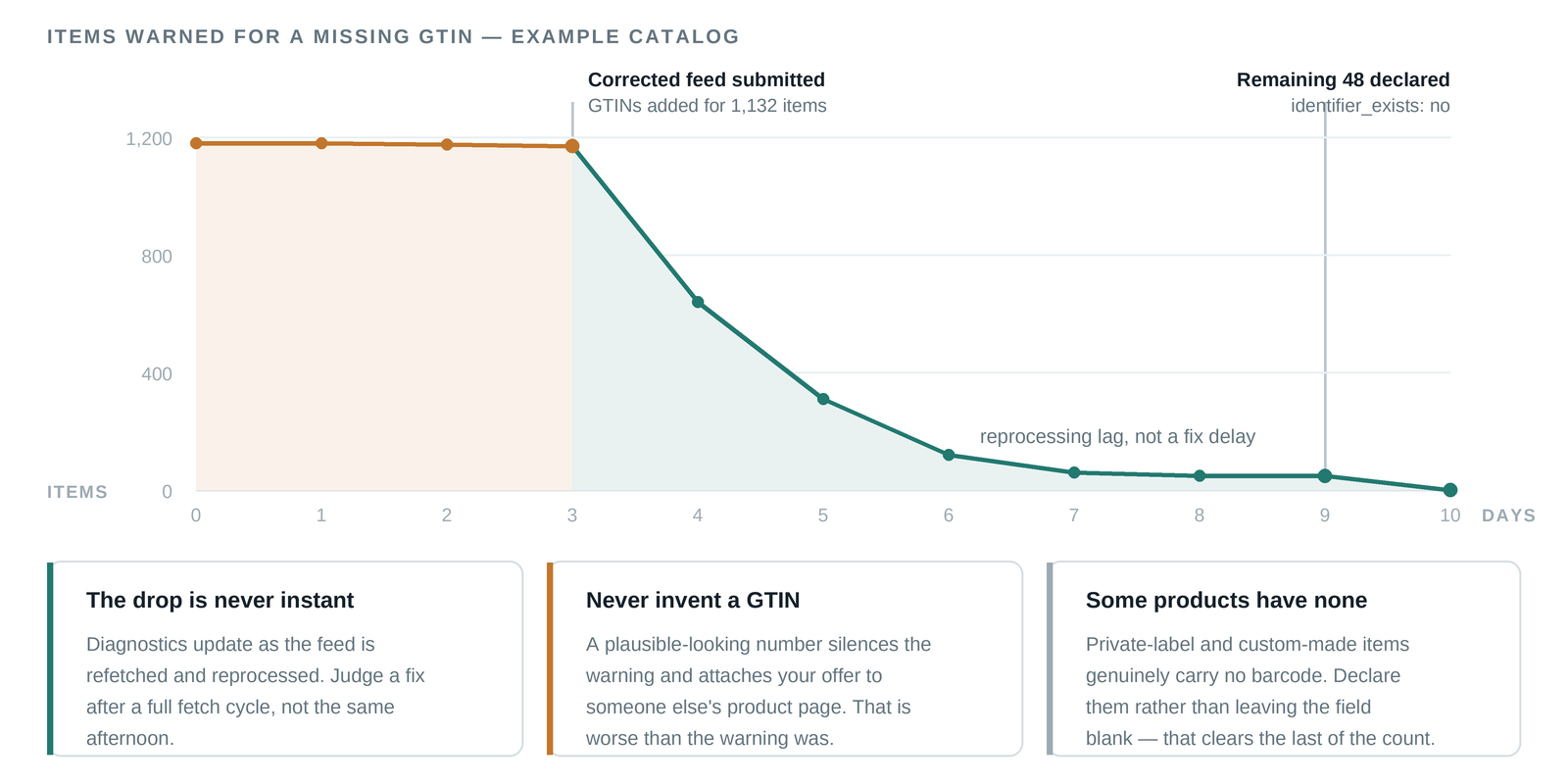
Before resubmitting, sanity-check the numbers. The last digit of every GTIN is a check digit computed from the others, so a validator catches most typos instantly, and GS1's own verification service shows which company a code is registered to — the brand shown should match the brand you are listing. Then re-upload the feed (or wait for the next scheduled fetch) and watch the Needs attention section: warnings clear as Google reprocesses the items, which can take a few days. Track the counts per issue type so you can see each bucket shrinking.
Fixing missing GTINs at catalog scale
All of the above is manageable for twenty products. It stops being manageable when Merchant Center flags eight hundred items and your source data is a supplier export with abbreviated names, no brand column and no barcodes. Looking up GTINs row by row is days of work, and rushed manual lookups are exactly how bucket C — wrong identifiers — gets populated.
This is the problem ProductBox is built for. You upload your raw product list as CSV or Excel, and each row is matched to the real-world product it describes and verified against live sources. Back comes a clean record per product — EAN/GTIN, brand, canonical name, category, description, specifications and images — with a confidence score and the number of independent sources that verified it, ready to map into your Merchant Center feed. Rows that cannot be matched confidently go to human review instead of being guessed, and you pay only for products that were successfully enriched. Since brand and GTIN arrive together and pre-verified, the identifier errors do not come back with the next feed upload.
Takeaway: fix the data, not just the warning
The missing GTIN warning is Google telling you it cannot confirm what you are selling. Triage your flagged items into three buckets: retrieve and add real GTINs for branded products, submit brand + MPN while you finish the lookup, and reserve identifier_exists for products that genuinely have no barcode. Validate every code before it ships, keep spreadsheet columns as text, and never fabricate a number. Do that once, properly, and identifier issues stop being a recurring line item in your diagnostics.
If the flagged list is long and your source data is messy, let the lookup run at catalog scale instead of doing it by hand.
Frequently asked questions
Can I sell on Google Shopping without a GTIN?
Yes, in two legitimate ways: submit brand plus MPN for branded products whose GTIN you have not retrieved yet, or set identifier_exists to false for products that genuinely have no identifier — custom, handmade, vintage or own-brand goods. Listings with correct GTINs still tend to perform better, so treat both as fallbacks rather than the end state.
How long does it take for GTIN warnings to clear?
Google reprocesses items after the next feed upload or scheduled fetch, and warnings typically clear within a few days. If a warning persists past a week, re-check the exact value submitted — formatting damage such as stripped leading zeros or scientific notation is the usual culprit.
What GTIN formats does Google accept?
8, 12, 13 or 14 digits — GTIN-8, UPC, EAN-13 and GTIN-14 respectively — submitted as digits only, with no spaces or dashes. A 12-digit UPC may also be submitted as 13 digits with a leading zero; both refer to the same product.
Ready to clean up your product list?
Upload a raw CSV or Excel file and get back verified names, EANs, categories, descriptions and images. First 25 products are free.
Get started free →