Image Disapprovals in Google Merchant Center: How to Fix Every Error
Promotional overlay, image too small, generic image — every Google Merchant Center image error explained, with the fix for one product or a whole catalog.
You open Google Merchant Center and find a wall of disapproved products: promotional overlay on image, image too small, generic image. Every one of those products is invisible in Shopping ads until its image issue is fixed — and if the same flaw runs through your whole feed, a single error type can take hundreds of SKUs offline at once. Image problems are among the most common causes of Merchant Center disapprovals, and unlike a policy dispute, every one of them has a concrete fix.
This guide walks through each image error Google raises: what triggers it, how to fix it for one product, and how to fix it across a whole catalog when the list of disapprovals is long. If your disapprovals mention barcodes rather than images, that is a different problem with its own guide — see Missing GTIN in Google Merchant Center: how to fix it.
Google's image requirements: the baseline
Before going error by error, it helps to know what Google actually asks for. Merchant Center checks every image in your feed against a fixed set of requirements, and each disapproval below is simply one of these rules being broken:
- Minimum size: 100×100 px for most products and 250×250 px for apparel — but treat these as legal minimums, not targets. Around 800×800 px or larger is the practical floor if you want your products to look competitive next to other listings.
- Format and delivery: standard formats (JPEG, PNG, WebP, non-animated GIF), served over a stable, publicly reachable URL that Google can crawl.
- A clean main image: the product itself on a white or plain background, filling most of the frame — not packaging groups, mood shots or collages.
- No added elements: no watermarks, retailer logos, promotional text, price flashes or decorative borders on the image.
- The real product: an actual photo of the item being sold — not a placeholder, an illustration or the manufacturer's logo.
With that baseline in mind, each error message becomes easy to read: it tells you exactly which rule the image broke.
The image errors, one by one
Missing image
The simplest one: the feed row has no value in the image link field, so there is nothing for Google to show. The fix is equally simple when you have the image — add its URL to the feed. The harder case is when you genuinely have no image for that product, which is a sourcing problem, not a feed problem. If your list carries EAN or GTIN barcodes, images are findable in bulk — our guide on finding product images by EAN covers the options from manual lookups to automated enrichment.
Image could not be crawled
The feed points to an image, but Google cannot fetch it. Usual suspects: a broken or moved URL, a server or CDN that blocks unknown crawlers or hotlinking, a robots.txt rule that shuts out Googlebot, or redirect chains that time out. Open the exact URL from your feed in a private browser window — if it does not load instantly there, it will not load for Google either. Fix the hosting rather than the feed: serve images from a stable HTTPS location that allows crawling, and avoid rewriting image URLs on every catalog sync, which forces Google to re-crawl everything from scratch.
Image too small or low quality
The image is below the size minimums, or large enough on paper but visibly blurry or pixelated. Do not fix this by upscaling — enlarging a small file adds pixels, not detail, and a soft, artifacted image can still be rejected on quality and will convert poorly even if approved. The real fix is a larger original: manufacturer media kits usually carry high-resolution studio shots, and a barcode-led image search finds the source version of an image you only have as a thumbnail.
Promotional overlay, watermark or text on image
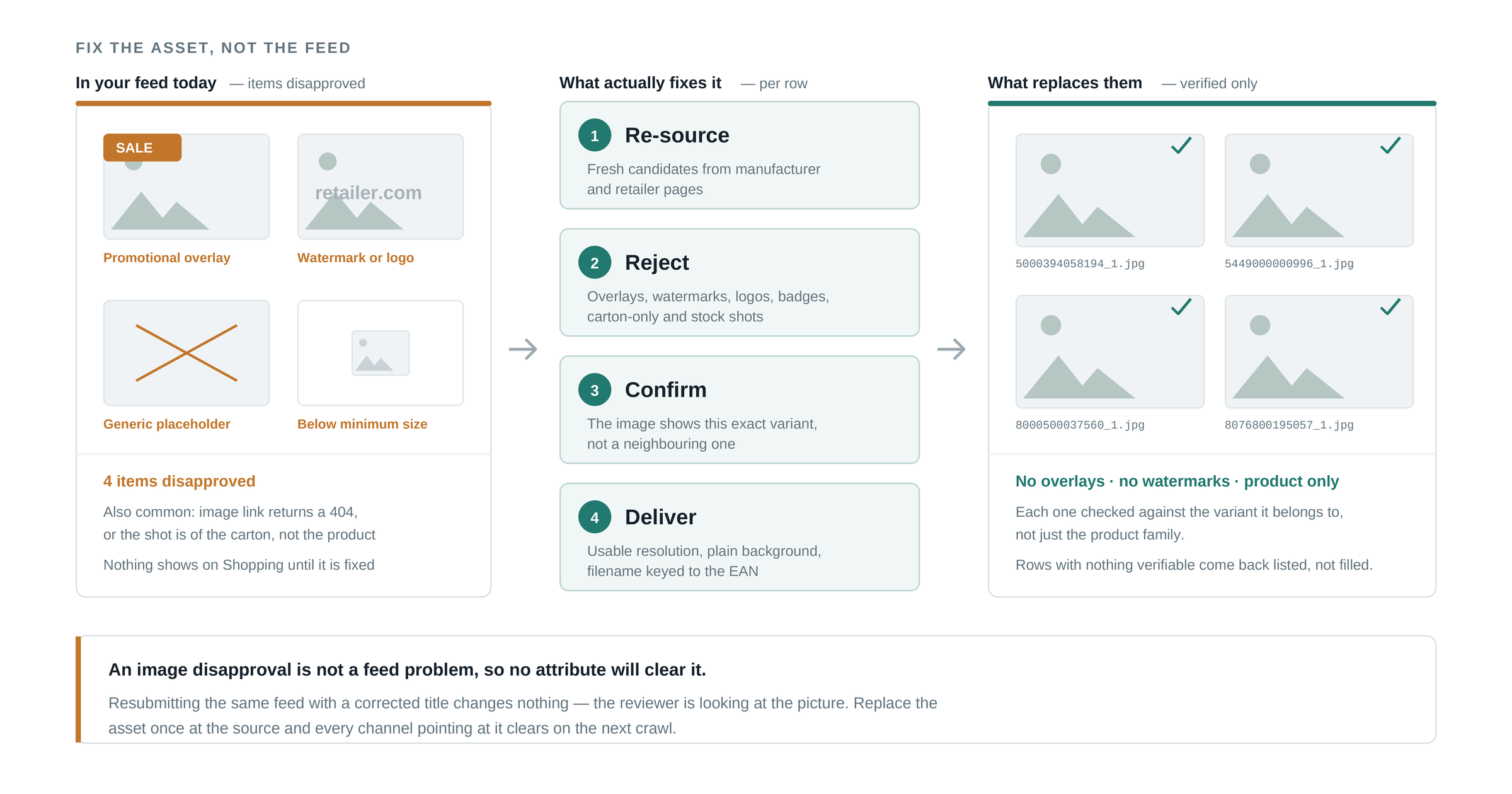
The most common family of image disapprovals. Google rejects main images that carry anything added on top of the photo: watermarks, shop logos, "free shipping" badges, percentage-off flashes, calls to action. These often arrive silently — a supplier watermarks their feed, or an old batch of images was branded for a printed catalog — and suddenly a whole import is disapproved for the same reason.
You have two ways out. Merchant Center offers automatic image improvements, which tries to remove detected overlays from your images by itself — worth enabling, but check the results, because cropping and inpainting can mangle some photos. The clean fix is to replace the branded file with an unbranded original: the manufacturer's own product shot almost never carries an overlay, so re-sourcing the image beats editing it.
Watermarked supplier images are a signal to check the rest of the feed — the same supplier usually watermarked everything. Filter your disapprovals by error type before fixing anything one by one.
Generic or placeholder image
The image slot is filled, but not with the product: an "image coming soon" tile, the brand's logo, or one stock photo reused across a whole category. Google treats these like missing images, and shoppers treat them worse. There is no shortcut here — each affected product needs a real photo of the actual item. For a long tail of obscure SKUs this is exactly where sourcing by barcode pays off, because the EAN finds the specific product a name search never would.
The wrong variant in the picture
Not always flagged with its own error code, but a steady source of trouble: the listing sells the red version, the image shows the blue one. At best it depresses conversion and drives returns; at worst it surfaces as data-quality warnings when Google compares your image against your landing page. The fix is structural: give every variant its own image, keyed to its own EAN — the barcode identifies the exact color and size, which is precisely why product identifiers matter as much for images as for matching.
After the fix: get re-reviewed
Fixes do not take effect until Google re-checks the product. Replace the image at the source, let your feed sync (or re-upload it), confirm the new URL is live in the feed — then open Diagnostics in Merchant Center and request a review of the fixed products. Re-reviews normally complete within a few days. Resist the urge to fix images by hand inside Merchant Center's interface: the next feed sync from your shop or PIM will overwrite manual patches, and the disapproval comes back.
Always fix images upstream — in your shop, PIM or source file — and let the feed carry the fix into Merchant Center. Anything patched only in Merchant Center is one sync away from breaking again.
Hundreds of disapprovals? Fix the catalog, not the symptom
When image disapprovals number in the hundreds, product-by-product editing stops being a plan. The pattern behind a big disapproval wave is almost always the same: the catalog never had good images to begin with — supplier thumbnails, watermarked files, placeholders — and Merchant Center is just the first system strict enough to say so.
This is the scenario ProductBox was built for. You upload your product list as CSV or Excel; for every row it finds and verifies the product on the open web — by EAN when present, by name and brand when not — and returns clean, verified images along with names, brands, barcodes, categories, descriptions and specifications. The images come from the product's own footprint on the web, which means unbranded originals instead of watermarked supplier copies. You review the results, export a ZIP with the image files named by your SKU or EAN, host them, and point your feed at the new URLs. You pay only per successfully enriched product — a product that cannot be found and verified costs nothing.
Prevent the next wave
Once the feed is clean, a short routine keeps it that way:
- Audit new supplier images on arrival — check a sample for watermarks, overlays and size before they enter the catalog.
- Keep one aspect ratio and a consistent naming scheme (SKU or EAN in the filename) so feeds, shops and re-imports stay in sync.
- Give every variant its own image, matched to its EAN — never let one hero shot cover ten colorways.
- Serve images from stable URLs that survive catalog syncs and allow crawling.
- Check Diagnostics weekly, filtered by error type — one supplier's bad batch is much cheaper to catch at ten products than at four hundred.
The takeaway
Every image disapproval in Google Merchant Center maps to one broken rule, and every rule has a fix: add the missing URL, unblock the crawler, replace the small or branded file, retire the placeholder, match the variant. Fix upstream, request the re-review, and the products come back. And when the disapproval list is long, treat it as what it really is — a catalog images problem, not a feed problem — and fix the images once, at the source, for every product at the same time.
Frequently asked questions
Why is my image disapproved in Google Merchant Center?
Almost always one of six reasons: there is no image link in the feed, Google could not crawl the URL, the image is too small or low quality, it carries promotional text or a watermark, it is a generic placeholder or logo, or it shows the wrong variant. The Diagnostics tab names which one, and each has a different fix.
How long does it take for a fixed image to be re-approved?
Google re-checks the item after your feed next syncs, and approval typically follows within a few days. Nothing happens until the corrected URL is actually live in the feed — so confirm the new image is being served before you start counting, and fix it at the source rather than in Merchant Center alone.
Can I use the manufacturer's image in my Google Shopping feed?
Yes, provided you have the right to use it and it meets Google's rules: the product on white or a plain background, no promotional overlay, watermark or added text, and the correct variant. Manufacturer media kits are built for exactly this and are usually the cleanest source.
Ready to clean up your product list?
Upload a raw CSV or Excel file and get back verified names, EANs, categories, descriptions and images. First 25 products are free.
Get started free →