How to Turn a Supplier Price List into a Complete Product Catalog
A supplier price list gives you article numbers, terse names and prices — not a sellable catalog. The four-step process for closing that gap.
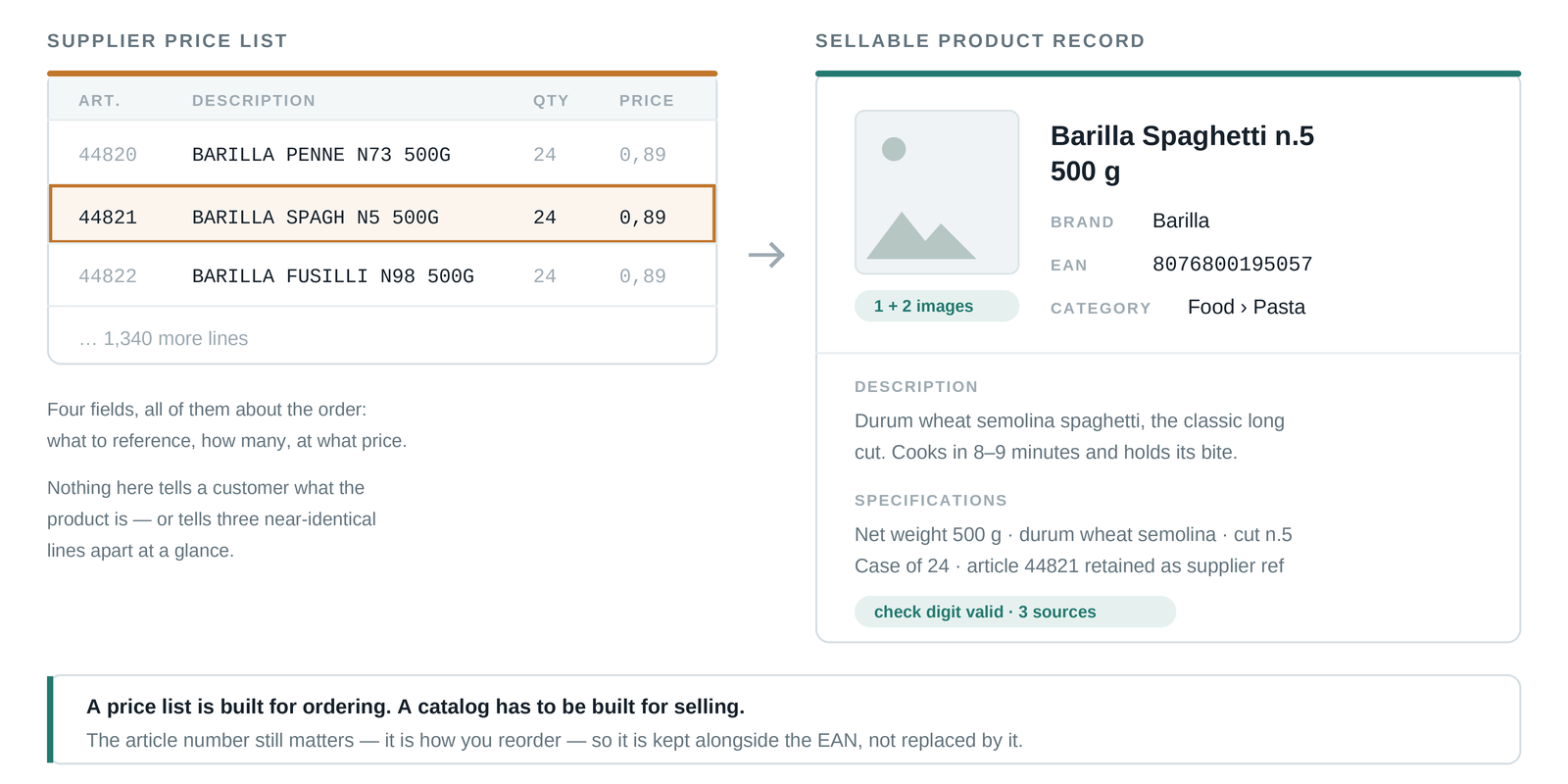
A supplier price list is built for ordering, not for selling. It tells you the article number, a compressed product name, a net price and maybe a stock figure — because that is all a buyer needs to place an order. A webshop needs far more: clean titles, brands, EAN/GTIN barcodes, categories, descriptions, specifications and images. The distance between those two files is why so many catalogs launch half-empty.
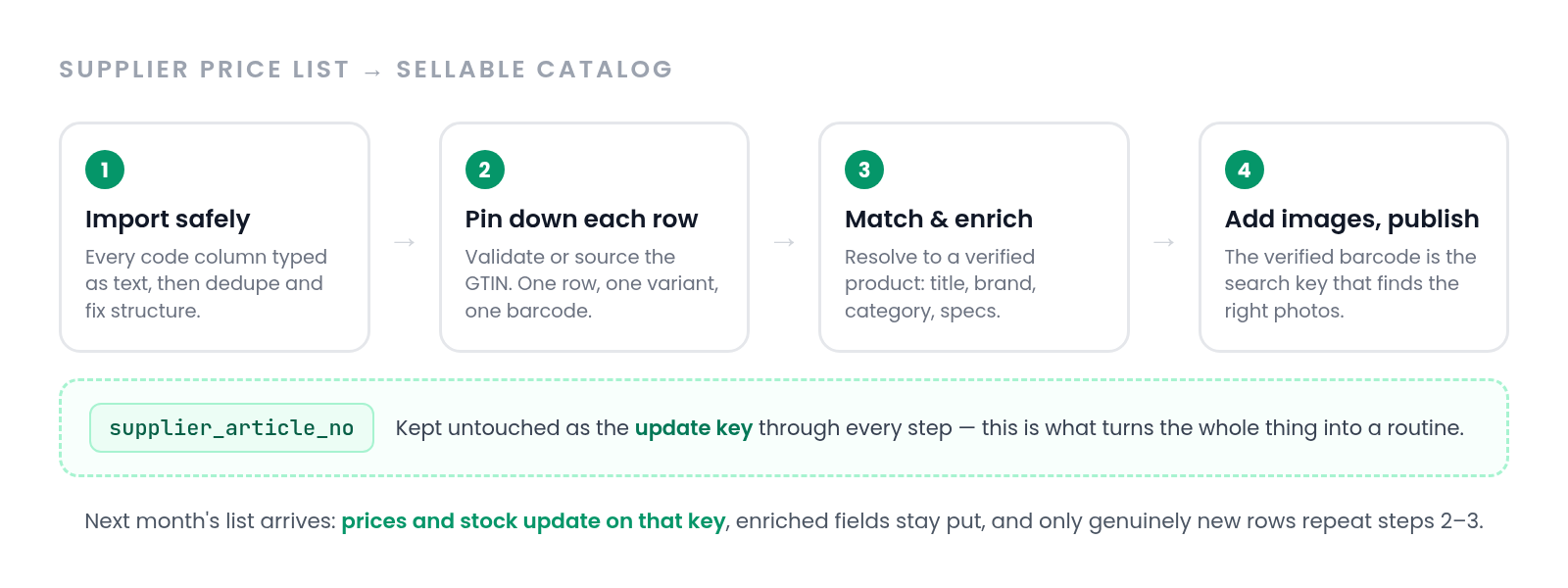
Closing that gap is a repeatable process, not a heroic one-off. This guide walks through it in four steps: import the file without damaging it, work out what each row actually is, match every row to a verified product record, and fill in images before you publish. Follow the order — each step depends on the one before it.
What a price list has — and what a catalog needs
Start by being honest about the raw material. A typical distributor file gives you a few order-oriented columns; a sellable product page needs a much longer set. Lay the two side by side:
- What the price list has: supplier article number, an abbreviated name like SAMSNG 55 QLED Q60C blk, net price, stock level, sometimes a half-filled EAN column.
- What your catalog needs: a full product title, the correct brand, a verified GTIN/EAN barcode, a category, a written description, structured specifications, and at least one usable image.
- What almost never survives the trip: consistent units, one row per variant, and barcodes that Excel has not mangled on the way through.
Everything in the second group that is missing from the first has to come from somewhere — the manufacturer, the wider web, or an enrichment service. That sourcing job is the core of the whole exercise; the rest of this guide is about doing it in the right order. For the broader picture of how that fits into catalog work generally, see the complete guide to product enrichment.
Step 1: Import the file without breaking it
The fastest way to ruin a price list is to double-click it. Excel silently converts long barcodes to scientific notation, strips leading zeros, and reads some article numbers as dates. Import the file instead, with every code column — article number, EAN, MPN — explicitly typed as text. If the damage has already happened, our guide to fixing EAN barcodes in Excel explains what is recoverable and what is permanently lost.
With the file safely open, do a quick structural audit before touching content. Deduplicate rows on the supplier article number, standardize obvious format problems, and flag rows where several products share one barcode — that usually means variants have been collapsed into a single line. The full cleanup routine is covered step by step in how to clean product data; the point here is to do it now, because every later step multiplies whatever mess you leave in.
Keep the supplier's article number as an untouched key column, even after you have better identifiers. Next month's price list will arrive keyed on it, and updating prices becomes a one-lookup job instead of a re-matching project.
Step 2: Pin down what each row actually is
Before you can enrich a row, you have to know which real-world product it refers to — and the abbreviated names in a price list are not enough. The anchor is a global identifier. If the file has an EAN column, validate it: correct length, digits only, and a passing check digit. If the column is empty or unreliable, there are four reliable ways to find the EAN for any product, from the manufacturer's listing to barcode databases to simply asking the supplier for a better export.
This is also the moment to untangle variants. Every color, size and pack quantity is its own product with its own GTIN. Price lists often list variants as near-identical rows differing by one code in the name — SAMSNG Q60C 55 and SAMSNG Q60C 65 — or worse, collapse them into one row. Decide your rule now: one row, one variant, one barcode. If the difference between GTIN, EAN, SKU and MPN is fuzzy, Product Identifiers Explained settles it in one read.
Step 3: Match every row to a verified product record
Now the real work: turning SAMSNG 55 QLED Q60C blk into a verified record for the Samsung QE55Q60C. Doing this manually means searching each name, confirming the exact model and variant, and copying fields across — reliable but slow, and realistic only for small catalogs. Doing it with naive fuzzy text matching is fast but dangerous: half-broken names produce confident wrong matches, which are worse than gaps. The explainer below covers why, and what a trustworthy pipeline does differently: normalization, candidate search, scoring, and verification against identifiers.
This step is ProductBox's core job. You upload the raw price list as-is; it builds search queries from your messy names, searches live web sources, extracts and cross-checks the data, and returns verified names, brands, EAN/GTIN codes, categories, descriptions and specifications — with a confidence score per product, and you only pay for products it successfully enriches. The full pipeline is described in how ProductBox matches product data. Whichever route you take, the output standard is the same: every field you publish should be traceable to a verified match, not guessed from a truncated name.
Step 4: Add images, then publish
Images are usually the last gap, because price lists never contain them and manufacturer sites do not hand them over in bulk. With verified EANs from step 3, the job gets much easier: the barcode is the search key that reliably leads to the right product's photos. The methods — manual lookup, barcode databases, manufacturer media kits, and automated enrichment — are compared in how to find product images by EAN, along with a checklist for what counts as a usable image and a note on image rights.
Then publish — but treat the first import as the start of a routine, not the finish line. Supplier price lists arrive again next week or next month. Because you kept the article number as a stable key and enriched data attached to verified identifiers, the recurring update is just prices and stock; the enriched fields stay put. New rows in the file are the only ones that need to go through steps 2 and 3 again.
Do not paste the supplier's own descriptions into your shop, even where they exist. Every other reseller of that distributor has the same text, and identical descriptions across dozens of shops help none of them stand out in search.
The takeaway
A supplier price list becomes a catalog in four ordered steps: import it with code columns as text and clean the structure, anchor every row to a verified identifier with one row per variant, match each row to a real product record and fill the missing fields, then source images off the verified barcodes and publish. Keep the supplier's article number as your update key and the process runs once — after that, recurring price lists are a lookup, not a project.
Frequently asked questions
My price list has no EAN column at all. Can I still do this?
Yes, but identifiers become step one instead of a checkpoint. Ask the supplier for a fuller export first — most have one, and it is worth being specific about what you need: the EAN/GTIN-13 for each sellable unit (not the case code), the manufacturer part number with the brand as registered, a clear mapping of which code belongs to which colour, size or capacity, and the file as CSV or Excel with the code columns formatted as text. Otherwise source the codes yourself using the methods in how to find EAN numbers, or use a matching service that can identify products from names and article numbers and return the EAN as part of the result.
How is this different from putting the file into a PIM?
A PIM stores and organizes product data; it does not create the missing fields. Loading a bare price list into a PIM gives you well-organized empty records. Enrichment fills them. The two work together, and the split is covered in PIM vs product enrichment.
How should I handle a price list that updates every week?
Separate the volatile columns from the stable ones. Prices and stock update on every import, keyed on the supplier article number. Enriched fields — titles, EANs, descriptions, images — persist untouched. Only genuinely new article numbers go through matching and enrichment again.
What about products the matching step cannot identify?
Expect a residue: discontinued items, supplier-exclusive bundles, rows too damaged to resolve. Quarantine them rather than publishing half-records, then work the short list manually with the supplier. A pay-per-result service keeps this honest — with ProductBox, unmatched products simply are not charged.
Ready to clean up your product list?
Upload a raw CSV or Excel file and get back verified names, EANs, categories, descriptions and images. First 25 products are free.
Get started free →